Appearance
C.10: Profile
Summary
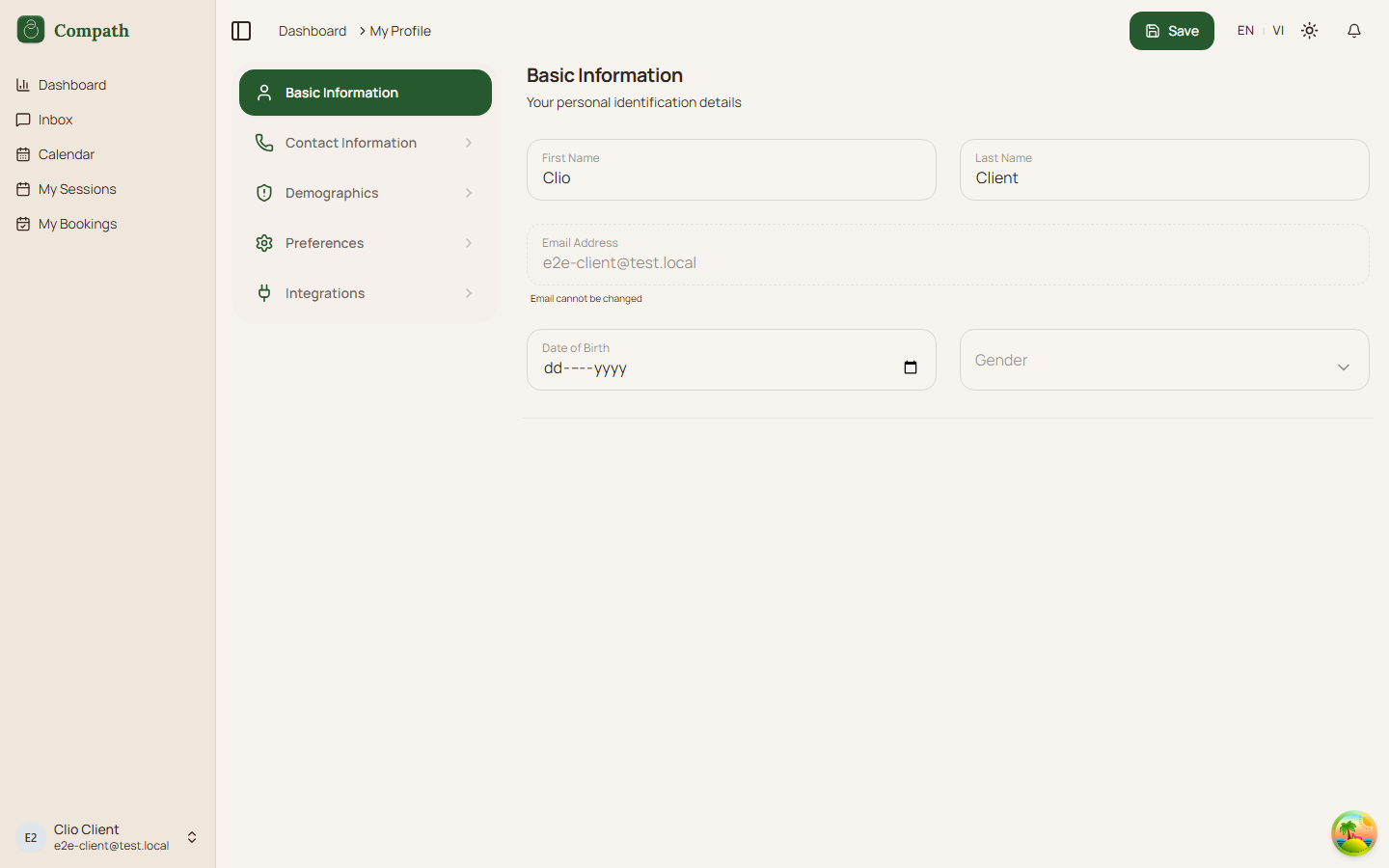
The Profile page lets clients view and edit their personal, demographic, contact, emergency contact, and preference data. It also surfaces integrations UI shared with other roles.
Role
- Primary: Client
- Secondary: System, Calendar provider
Entry Point
- URL:
/profile - Navigation: User menu -> Profile
- Redirect:
/settingsredirects to/profile
Preconditions
- Authenticated: yes
- Required role:
client - Current user profile must load successfully
Steps
- Client opens the user menu in the dashboard layout.
- Client selects Profile.
- System opens
/profileand loads the current user. - System hydrates the editable form with profile fields.
- Client selects a profile section from the local sidebar.
- Client edits fields in Basic, Contact, Demographic, or Preferences sections.
- Client can change theme preference; the theme is applied immediately in the client.
- Client clicks Save Changes.
- System submits
useUpdateCurrentUser. - On success, system shows a success toast; on failure, it shows an error toast.
Diagram
Edge Cases
- Loading: Profile renders inside dashboard layout with a loading state.
- Email: Email is displayed read-only.
- Counselor-only fields: Professional counselor fields are shown only when
account_typeiscounselor; clients do not see that section. - Calendar callback messages:
calendar_connectedandcalendar_errorquery parameters trigger success/error toasts and are then removed from the URL. - Integrations section: The integrations section is present in the profile tab structure; available actions depend on shared integration components and account state.
- Save failure: User changes remain in the form, and an update failed toast is shown.
Screenshot Status
- Captured: