Appearance
C.4: My Sessions
Summary
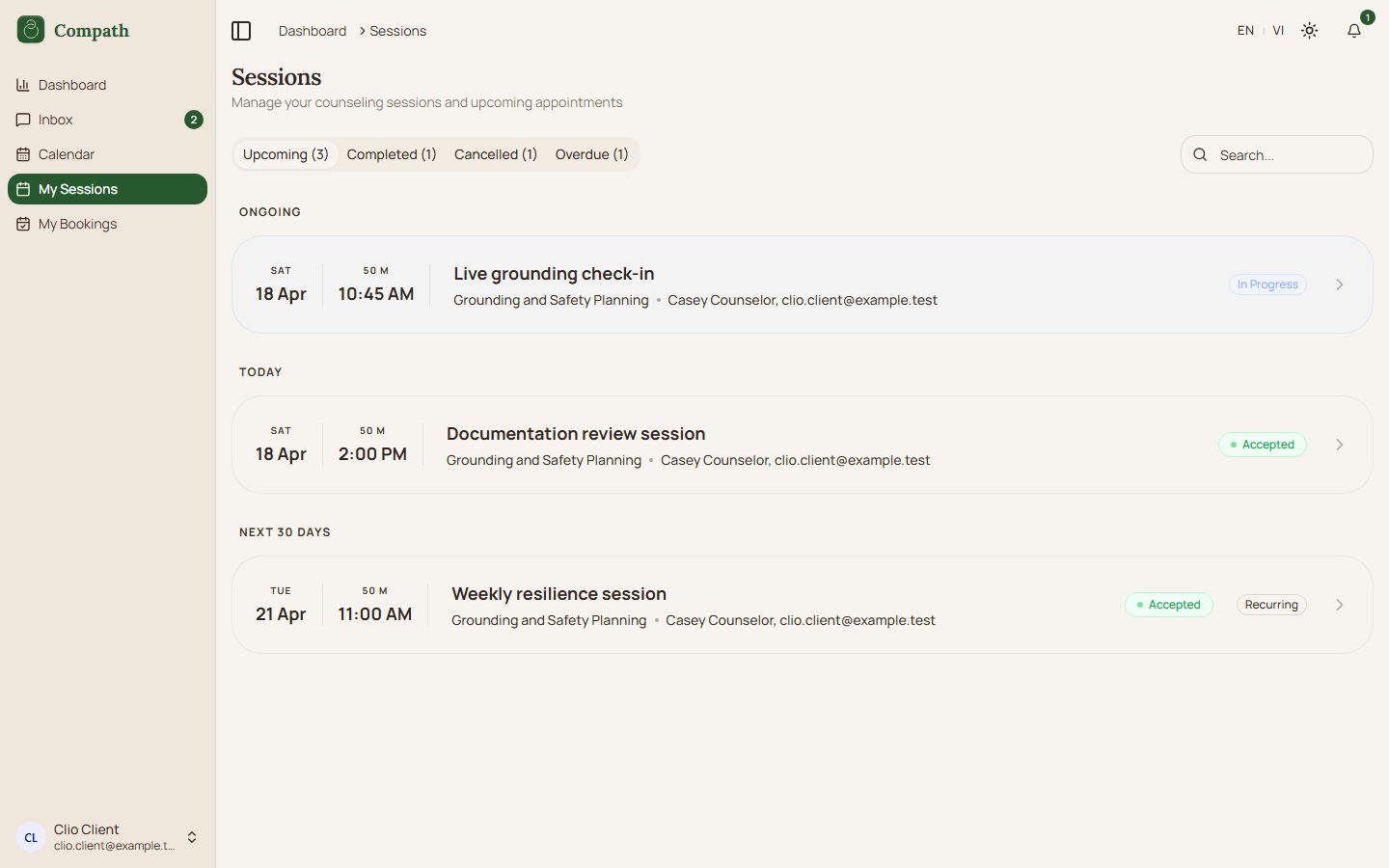
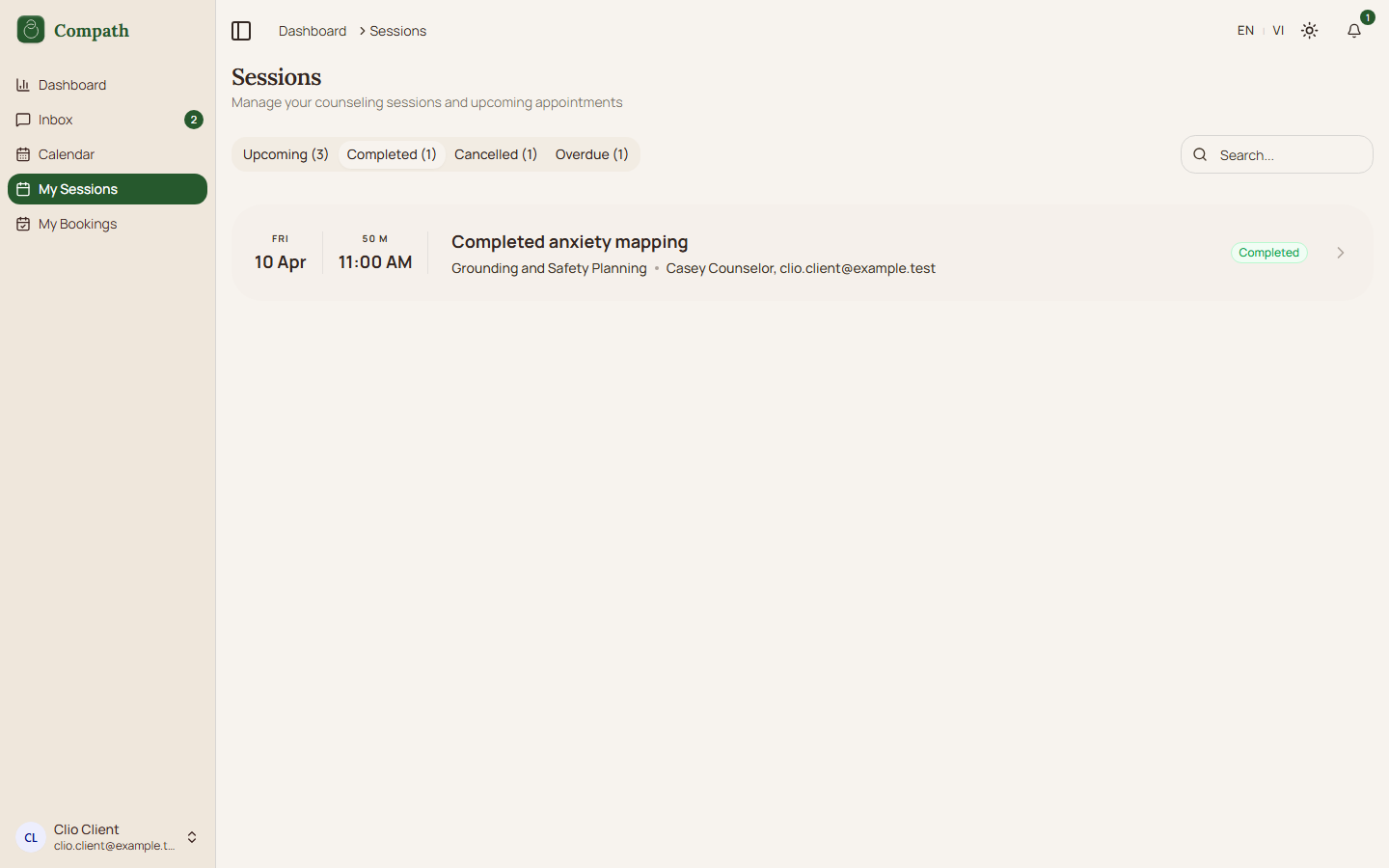
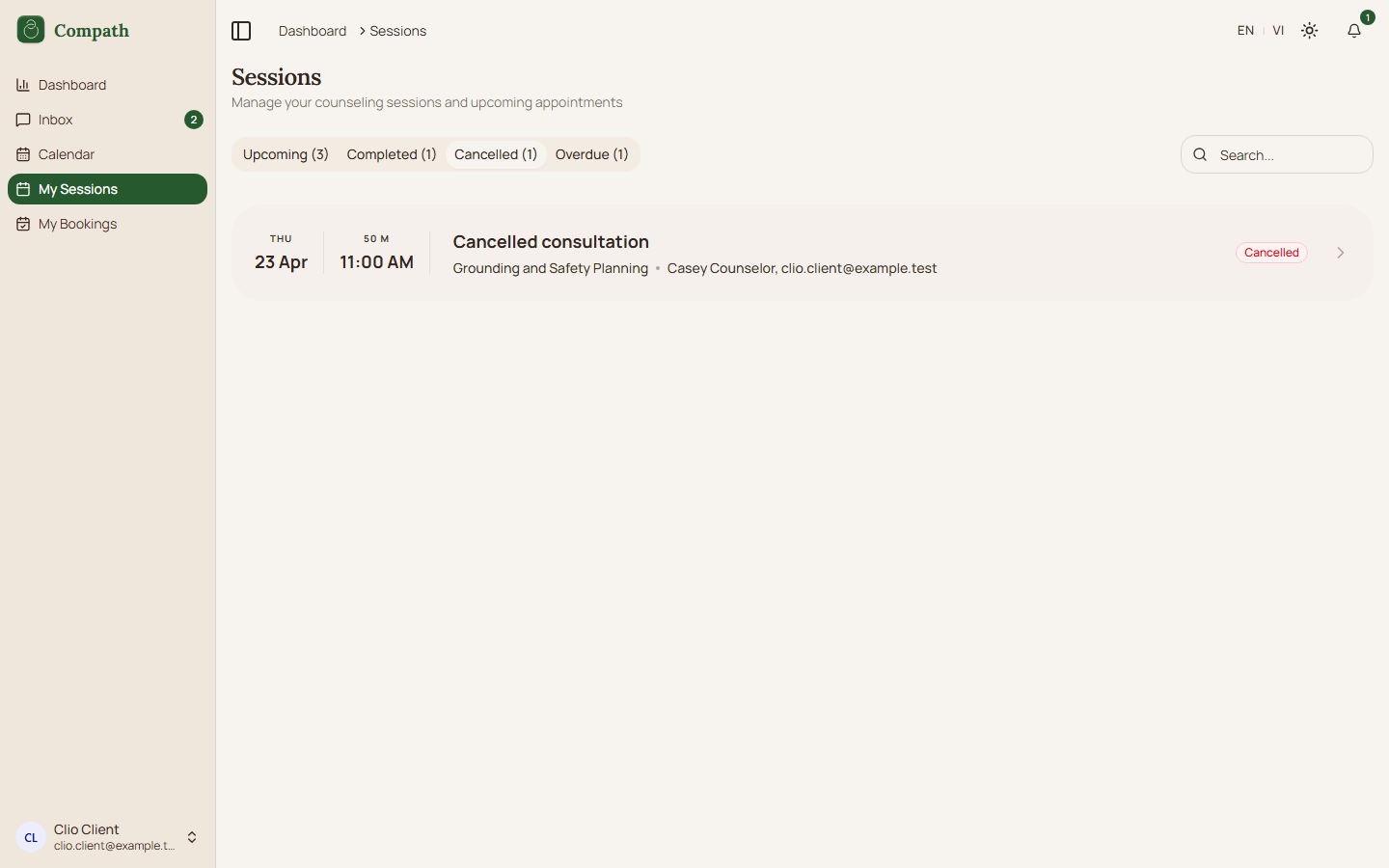
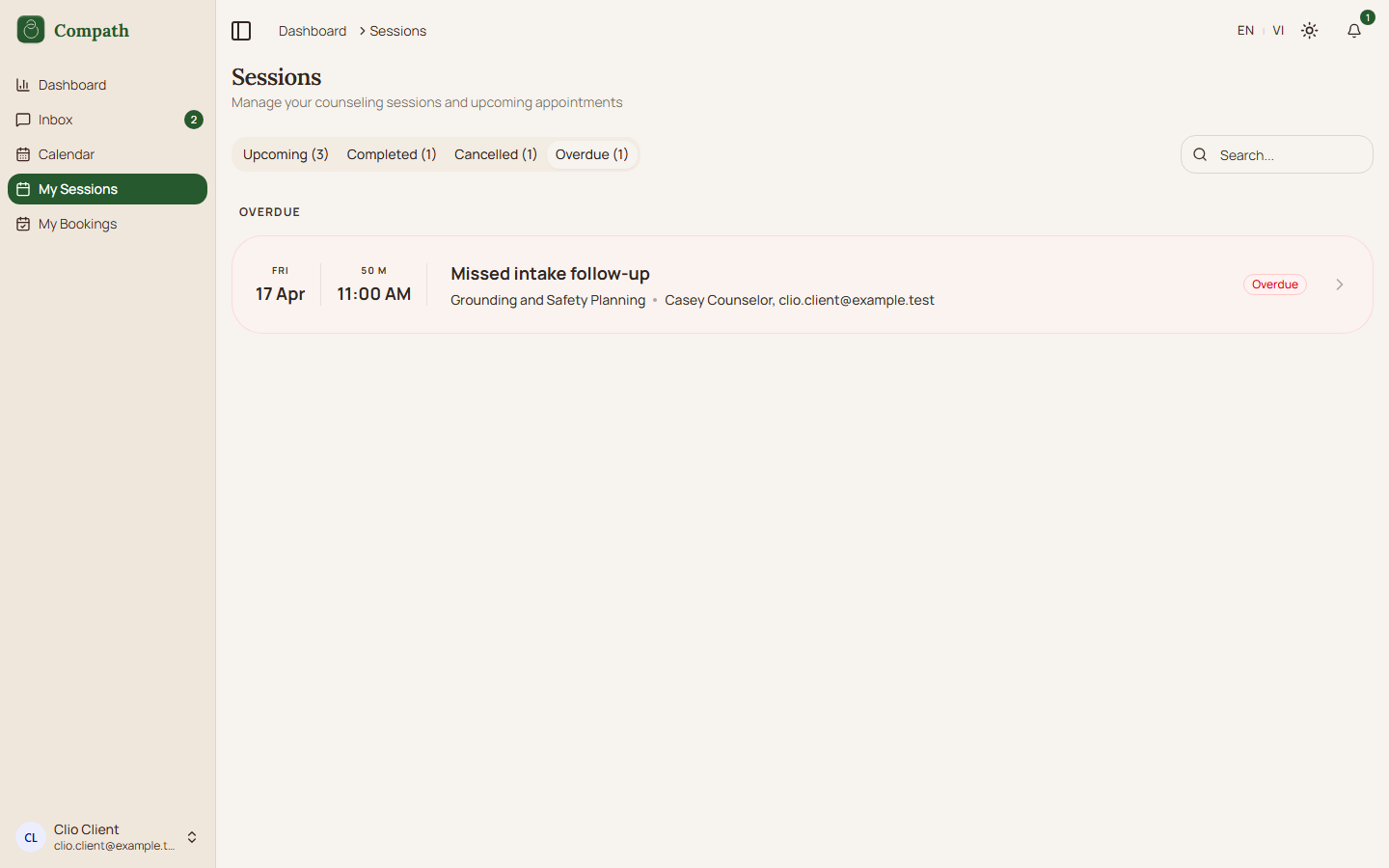
My Sessions lets a client browse their meetings by status. The page groups scheduled meetings into useful time buckets, includes ongoing sessions, and separates completed, cancelled, and overdue sessions into tabs.
Role
- Primary: Client
- Secondary: Counselor, System
Entry Point
- URL:
/sessions - Navigation: Sidebar -> My Sessions
- Dashboard: All Sessions link when more upcoming sessions exist
Preconditions
- Authenticated: yes
- Required role:
client - Client has access to zero or more meetings through the meetings API
Steps
- Client opens
/sessions. - System queries scheduled meetings, in-progress meetings, ended meetings, and cancelled meetings.
- Client can search meetings using the search input.
- System groups scheduled meetings into overdue, today, tomorrow, this week, next 30 days, and future.
- Client switches between Upcoming, Completed, Cancelled, and Overdue tabs.
- Each appointment card shows date, time, duration, title/session type, counterpart name, and status badges where relevant.
- Client clicks a session card.
- System navigates to
/sessions/:meetingIdfor session details.
Diagram
Edge Cases
- Loading: Each tab shows placeholder rows while its query is loading.
- No items: Each tab has its own empty state.
- Search: Search is passed to each status query and affects visible results.
- Ongoing sessions: In-progress meetings appear in the Upcoming tab and receive an animated status badge.
- Scheduling button: The New Session button is only shown for counselors/admins, not clients.
- Participant label: For clients, the counterpart label uses the counselor name.
- Workspace filter: Sessions booked through a counselor's workspace carry a workspace badge. The workspace select defaults to All workspaces (a client's sessions are usually booked by a clinic, so Personal would hide them) and appears only when at least one session carries a badge; choose Personal (sessions with no workspace) or the workspace itself to narrow the list.
Screenshot Status
- Captured with Playwright using deterministic mock data:
- Upcoming tab:
- Completed tab:
- Cancelled tab:
- Overdue tab:
- Upcoming tab: