Appearance
G.10: Join Meeting
Summary
Guests join a video meeting from a public share token. They can join as a guest with their display name or, if already authenticated, join using their account.
Role
- Primary: Guest
- Secondary: Client, Counselor
Entry Point
- URL:
/join/:token
Preconditions
- Meeting token is valid.
- Meeting is joinable and not cancelled or ended.
Steps
- Guest opens
/join/:token. - Frontend loads guest meeting information.
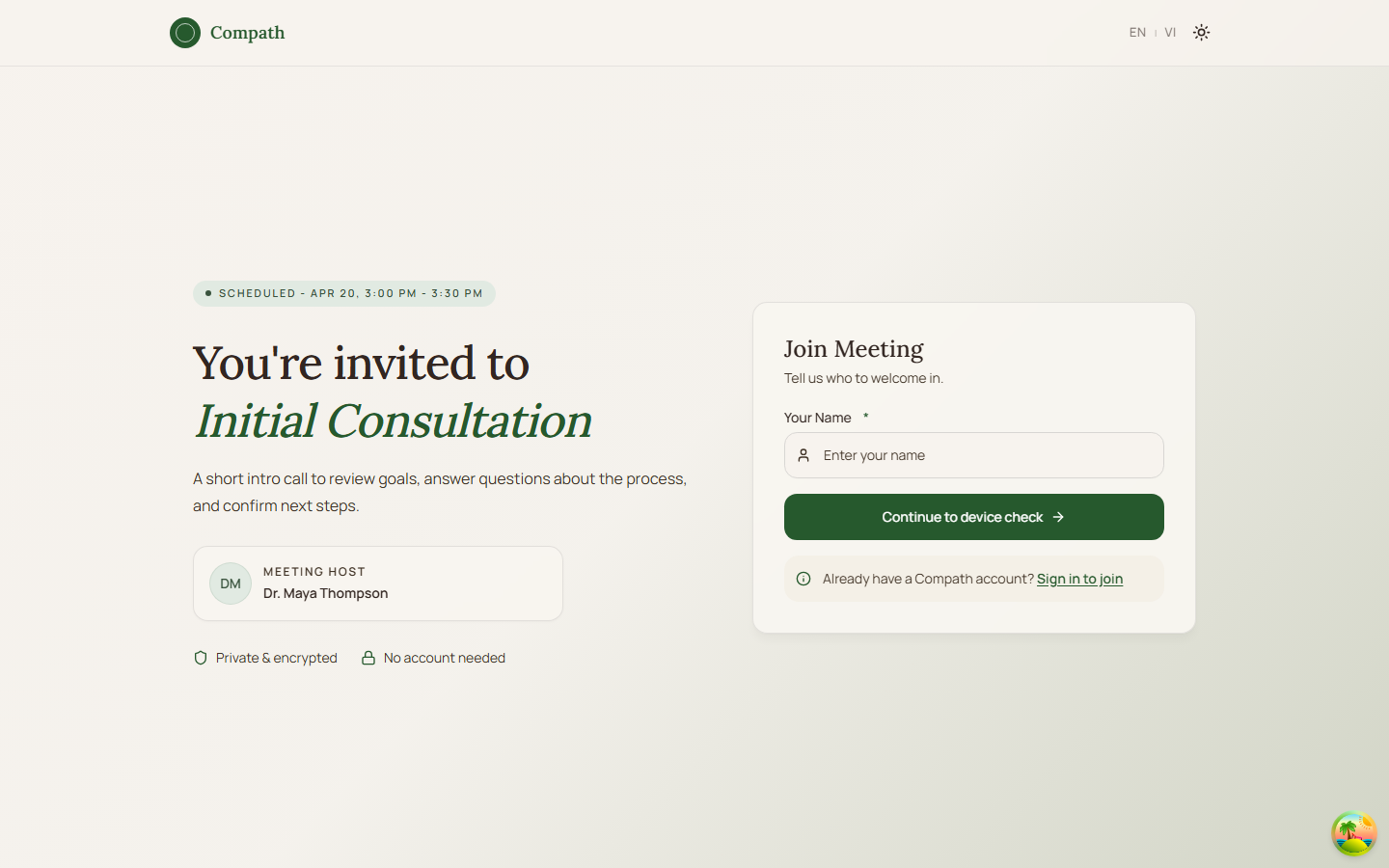
- Guest chooses account join or guest join.
- Guest enters their display name.
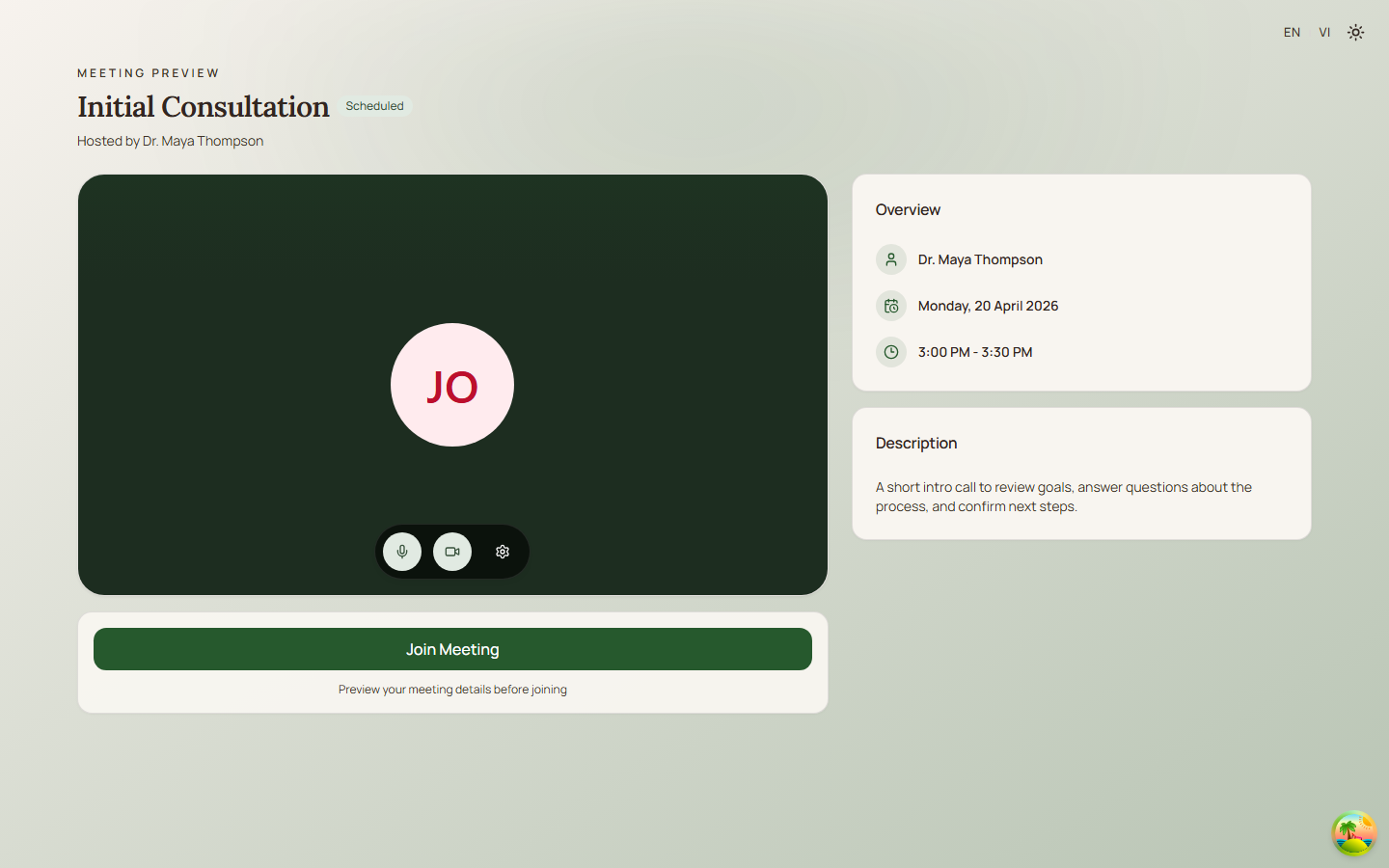
- Guest completes the pre-join device check.
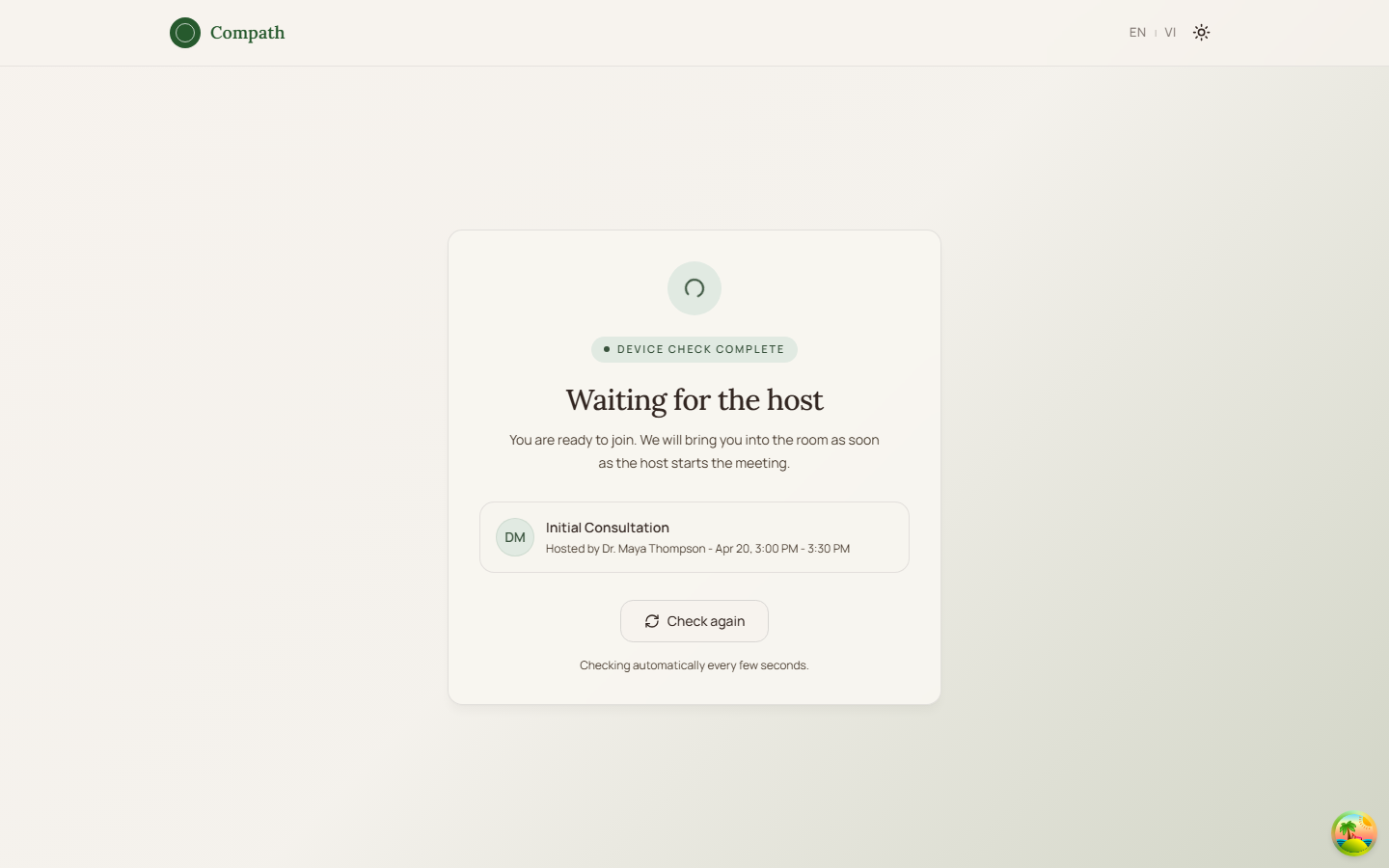
- If the meeting is still scheduled, the frontend shows a waiting lobby and polls meeting status.
- When the meeting becomes
in_progress, the frontend requests LiveKit credentials through the join API. - Meeting room connects with the returned token and URL.
- Guest leaves or disconnects from the room.
Diagram
Edge Cases
- Not found: Invalid token shows not-found state.
- Not started: Scheduled meetings show a frontend waiting lobby after device check until the host starts.
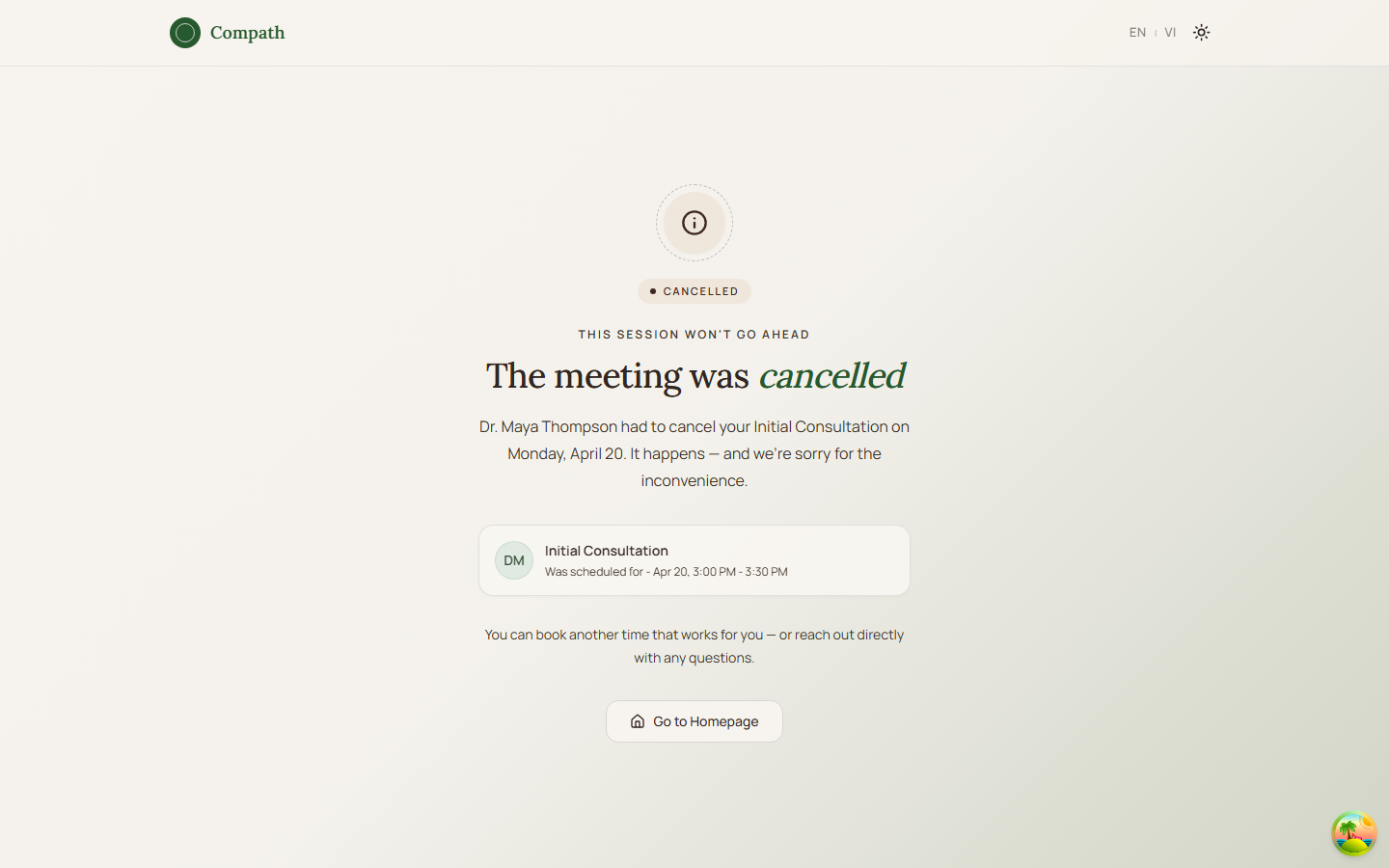
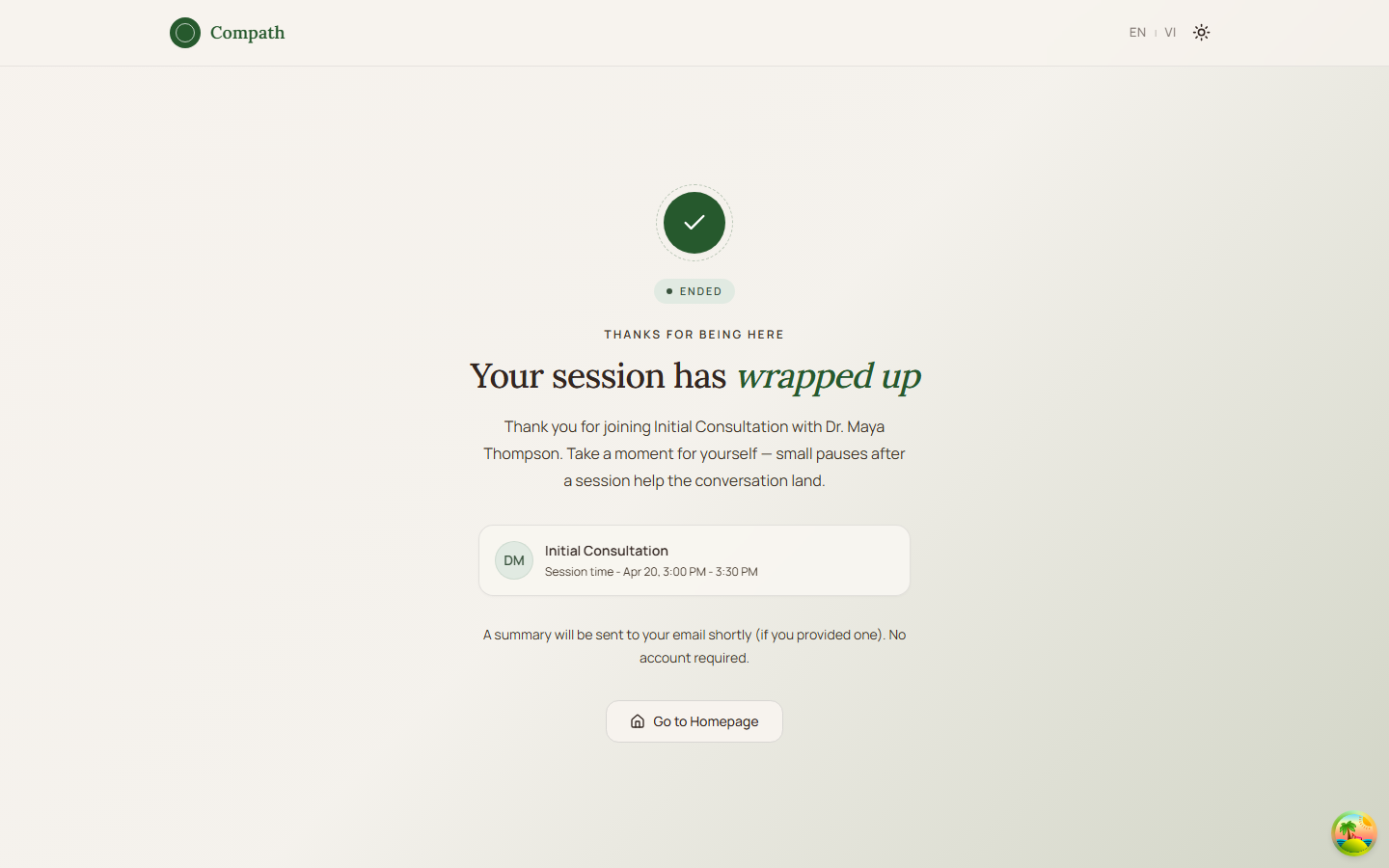
- Ended/cancelled: Page shows ended or cancelled state with terminal-state copy.
- Connection failure: User can retry from the error state.
Current Implementation Notes
- Frontend:
frontend/src/app/pages/join-meeting.tsx,frontend/src/features/meeting/components/meeting-pre-join.tsx
Screenshot Status
- Join page states captured with Playwright on 2026-04-18 using mocked meeting data:
- Guest details form:
- Guest pre-join:
- Waiting lobby:
- Cancelled meeting:
- Ended meeting:
- Guest details form:
- Meeting room fixture:
- Guest room waiting state:
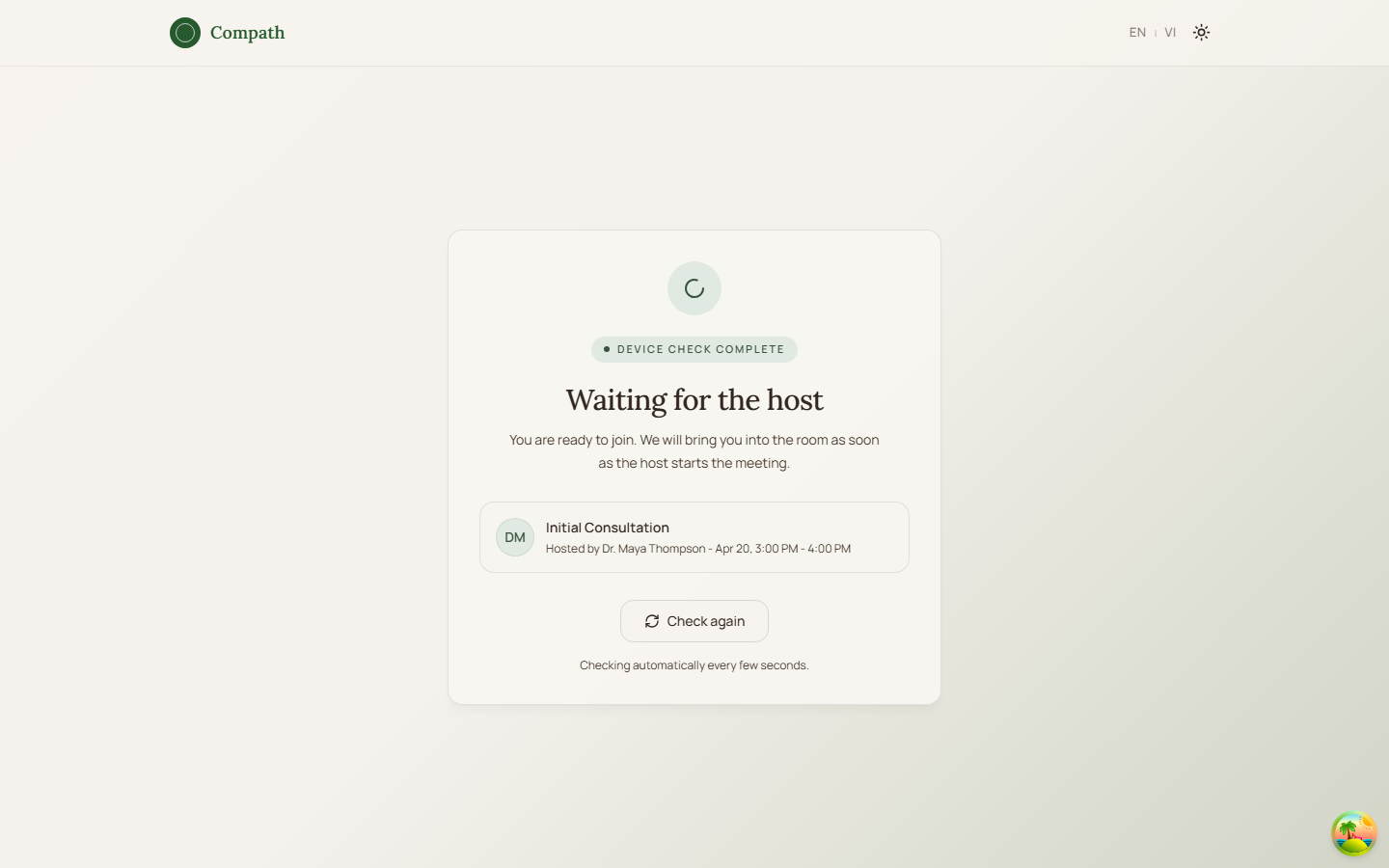
- Guest room waiting state: